Messenger'da Potansiyel Müşteri Toplama – Webview İşlevi

Bu StartMsg sohbet pazarlaması platform lets you open a special “webview” window inside the Messenger uygulama, burada şunlar için web sayfaları görüntüleyebilirsiniz: Messenger'da lead toplama. Bu, sadece metin veya mesajlarla sağlanamayacak özellikler ve etkileşimli formlar sunmayı mümkün kılar; ürün seçme, yer ayırtma veya tercih edilen tarihi seçme gibi.
WEBVIEW KONTROL PANELİ
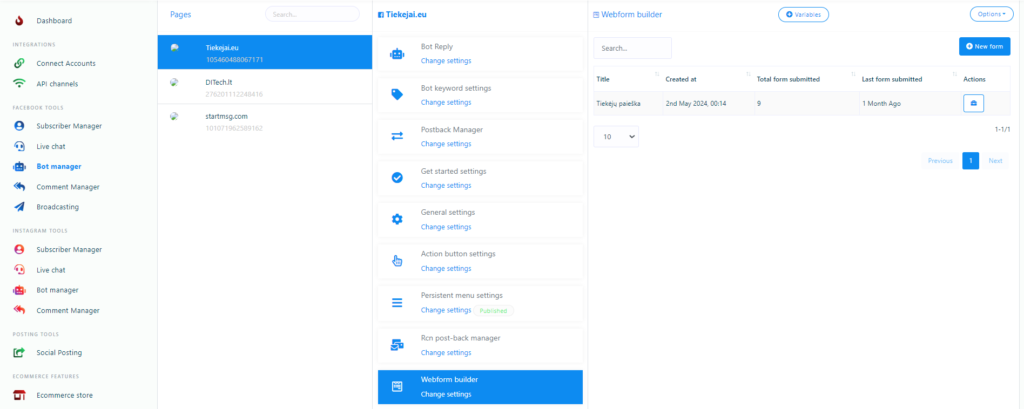
Oluşturduğunuz webview pencerelerine erişmek için şuraya gidin: Messenger Bot manager > Webview menü. Burada oluşturulmuş tüm webview formlarının listesini bulacaksınız:
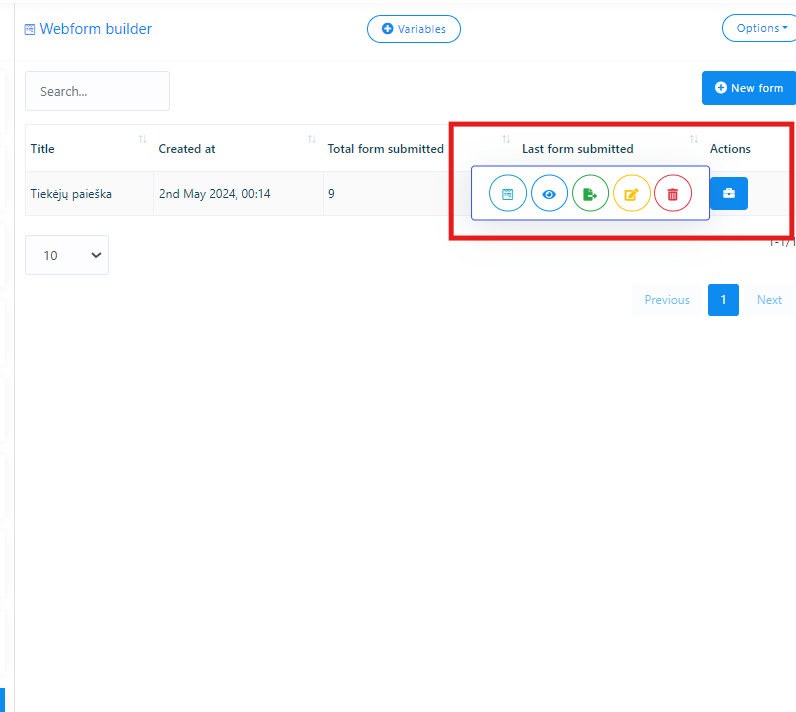
- 🔍 Önizleme – lets you see how the form looks and copy the webview link.
- 📊 Raporlar – lets you view the form analytics and the submitted data.
- 📁 Dışa aktar – lets you download all submitted form data in CSV format.
- ✏️ Düzenle – lets you change an existing form as needed.
- 🗑️ Sil – removes the webview form.
CREATING A WEBVIEW FORM – Collecting Leads in Messenger
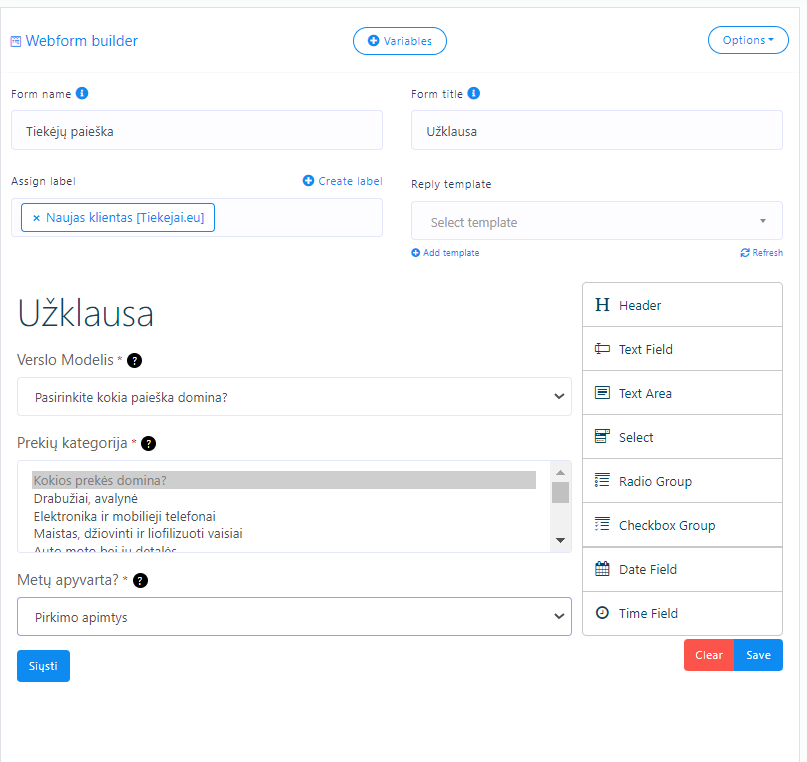
To create a new webview form, click “Yeni form oluştur“. This process uses a drag-and-drop oluşturucu, burada form adını, başlığını, sayfayı ve etiketler ile yanıt şablonu gibi diğer parametreleri kolayca ayarlayabilirsiniz. Bir form gönderildiğinde kullanıcılara seçilen etiketler atanır ve Messenger gelen kutularında otomatik olarak bir yanıt alırlar.
WEBVIEW FORMU KULLANMA
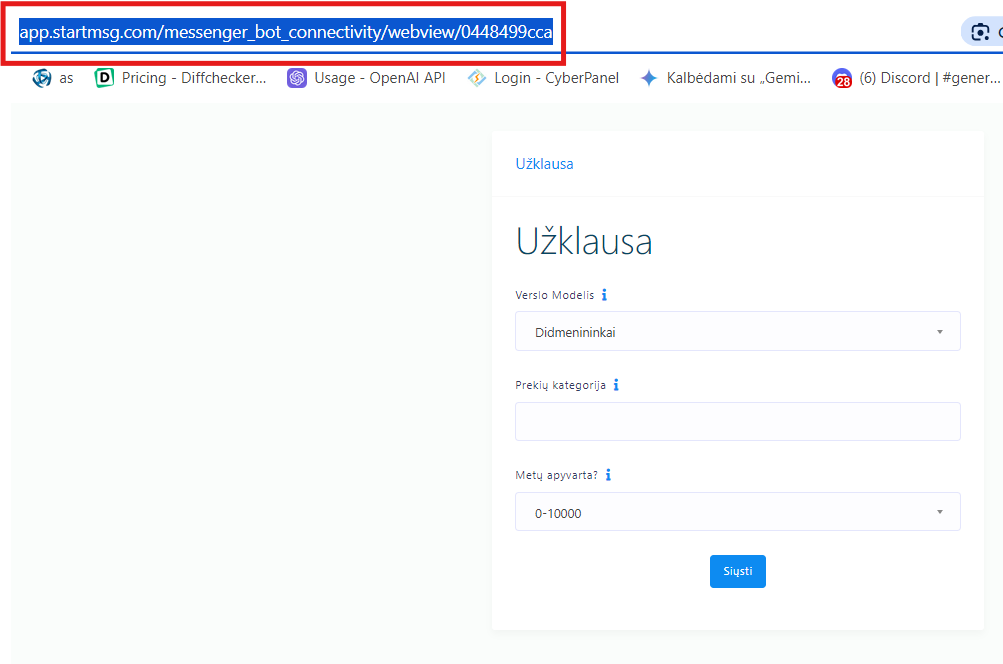
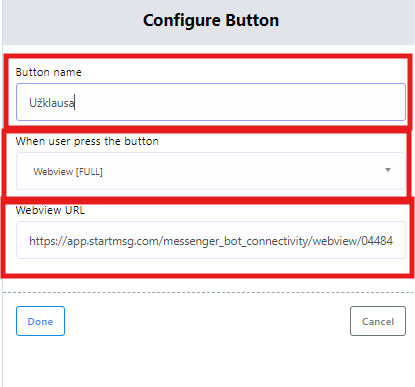
Oluşturduğunuz bir webview formunu şunun için kullanmak için: Messenger'da lead toplama, tıklayın formu görüntüle ve tarayıcı URL'sini kopyalayın. Bu bağlantıyı daha sonra şu uygulamanıza ekleyebilirsiniz: Messenger Bot yöneticisi ayarlarında webview'i şu şekilde seçerek: düğme türü.
SOHBET AKIŞINDA FORMU AYARLAMA
- Go to the flow builder and select “Anahtar kelimeyle yeni bir sohbet oluştur” or open an existing chat.
- In this example we use the “Get Started Template” – as you can see in the image, this is an already fully prepared chat.
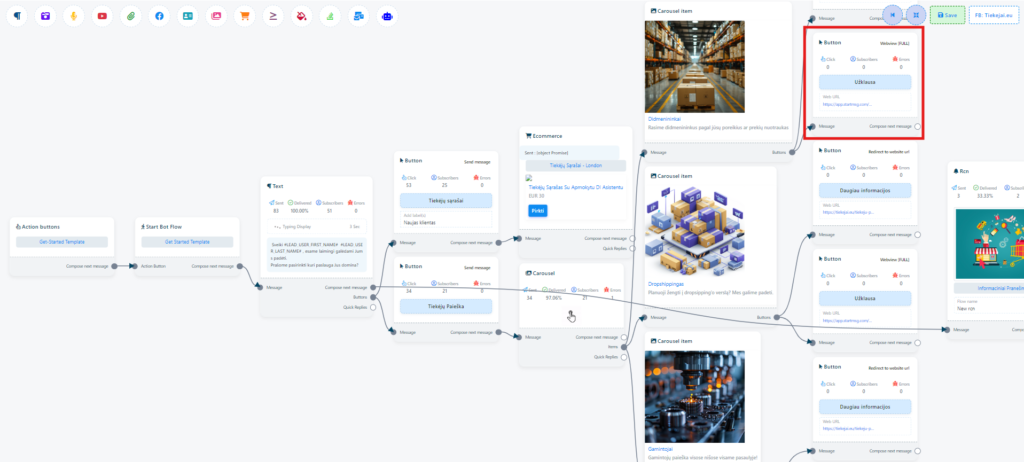
- Şunu ekliyoruz: webview formu we created to the “İstek” düğmesine basın.
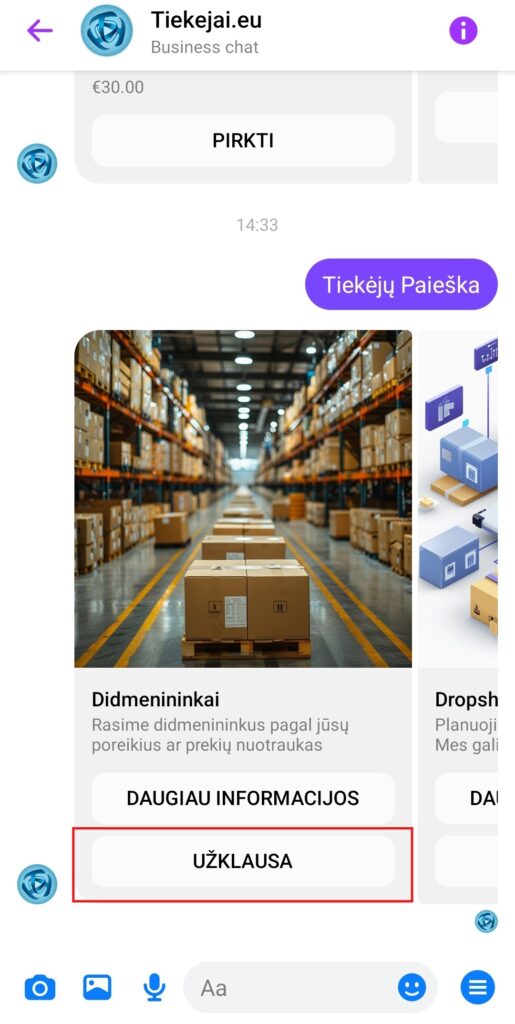
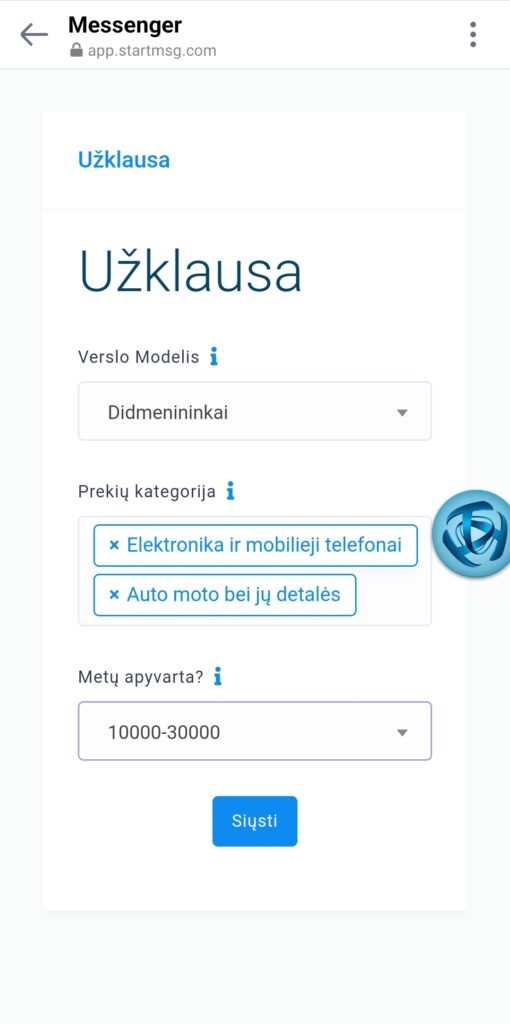
When a user clicks “İstek” or another button you choose, the webview Messenger uygulaması içinde açılır. Kullanıcı daha sonra formu kolayca doldurabilir ve verileri gönderdikten sonra isteğin başarıyla alındığını doğrulayan bir mesaj görür.
RAPORLAR
In the Webview kontrol panelinde şuna tıklayın: göz simge raporu görüntülemek için; bilgileri e-posta yoluyla da alacaksınız. Buradaki veriler her bir kullanıcıya göre düzenlenmiştir.
KULLANIM ÖRNEKLERİ
- Messenger'da Lead Toplama
- Kullanıcıların koltuklarını ve yemek tercihlerini seçebildiği bir seyahat botu.
- Kullanıcıların ziyaret saatini takvimden seçebileceği bir diş kliniği botu.
- Abonelik konuları seçeneği sunan bir haber botu.
- Kullanıcıların kişisel indirimler ve hediyeler seçmesine olanak tanıyan bir e-ticaret botu.
- Güzellik sektörü: kuaför salonları, masaj stüdyoları ve daha fazlası, rezervasyon veya lead toplamak için.
- Rezervasyon toplamak için kiralama işletmeleri.
Özet:
ile Messenger'da lead toplama şunu kullanarak: StartMsg webview aracı sayesinde, kullanıcılara ürün veya hizmetlerinizi sunma şeklinizle etkileşim kurmaları için kullanışlı, ilgi çekici ve basit yollar sunan çeşitli etkileşimli formlar oluşturabilirsiniz.