Email and SMS automated message integration

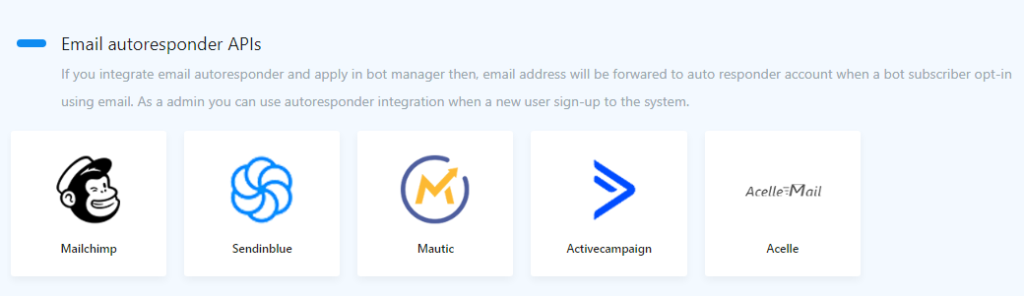
Among all its other great features, StartMsg also integrates several third-party email management tools for automatic email replies directly from the system. StartMsg includes five email autoresponders that let you automatically send collected emails to the relevant tools and add contacts to the relevant email lists. The StartMsg email autoresponders are:
- ActiveCampaign
- Mailchimp
- Sendinblue
- Acelle
- Mautic
Mailchimp
You can now integrate MailChimp into StartMsg. With this feature, all emails collected from Messenger Quick Reply or user registration are automatically added to your chosen MailChimp list.
Integration procedure:
- Click “MailChimp”, and you will be taken to the MailChimp account section.
- Press the Add Account button. A window will open where you need to enter the API key and a tracking name.
- Enter your MailChimp account API key and give it a name so you can easily recognize it later.
The same also applies to:
- Sendinblue
- Acelle
- Mautic
- ActiveCampaign
The same integration procedure applies to all of these platforms, allowing you to automatically send emails and manage contacts collected through Messenger or registration forms.
Chatbot settings
Configure the settings to send emails to the relevant autoresponders:
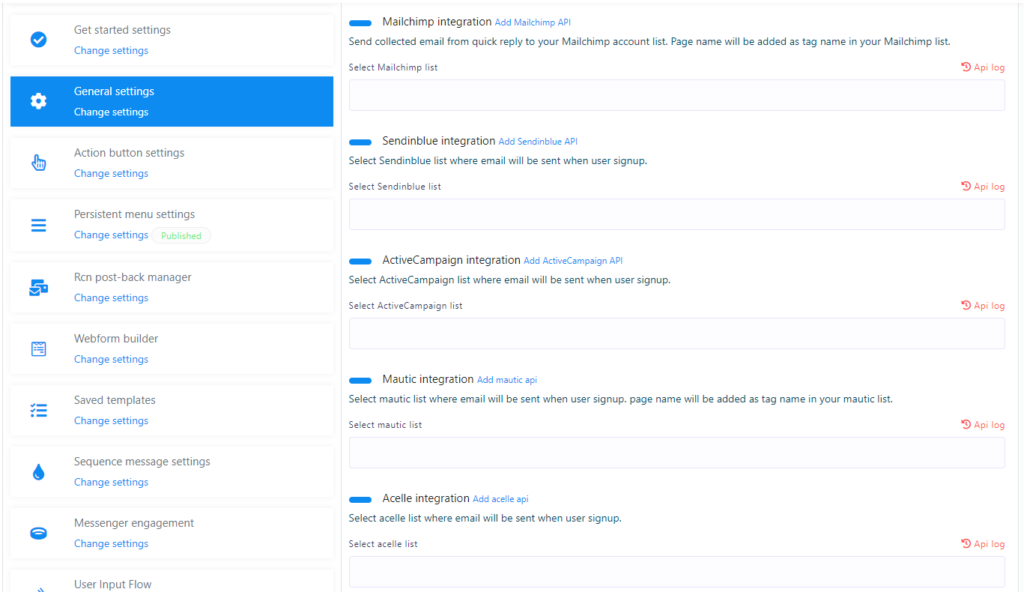
To have emails sent to your chosen email autoresponder (Mailchimp, Sendinblue, Mautic, Acelle, ActiveCampaign), go to the Bot Manager menu, then click General Settings, select the email autoresponder you want and press the Save button.
Sending automated messages or emails:
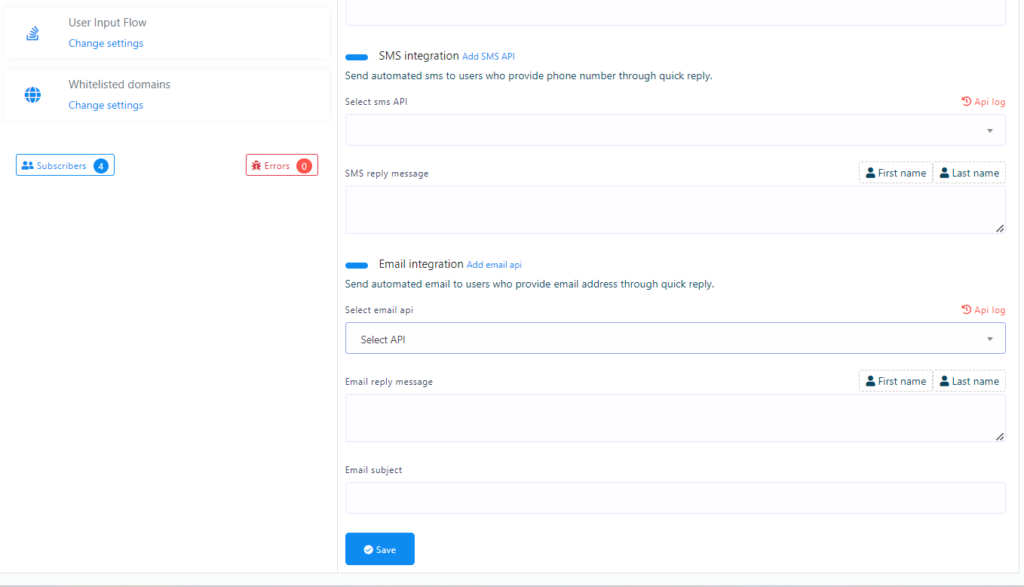
Below you can set up automatic sending of messages or emails to customers who have submitted their contact details. This ensures every potential customer receives a message or email with important information that helps them communicate successfully with your business.
SMS API
StartMsg is constantly improving, enriching its features. Among other capabilities, it also offers an SMS sending feature. StartMsg has made SMS sending easier by integrating several popular SMS provider platforms and adding the option to use your own GET/POST API. Below are the available platforms a user can integrate with the system:
- Plivo
- Clickatell
- Clickatell-platform
- Planet
- Nexmo
- MSG91
- Africastalking
- SemySMS
- Routesms.com
- HTTP GET/POST
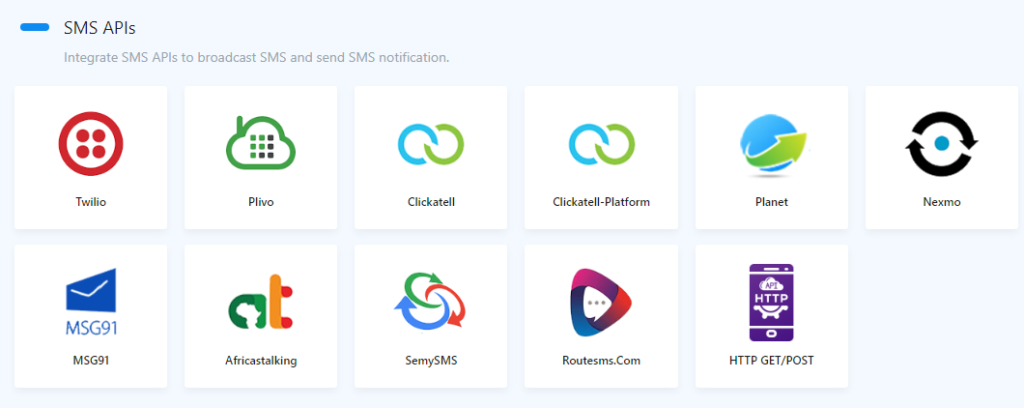
Twilio
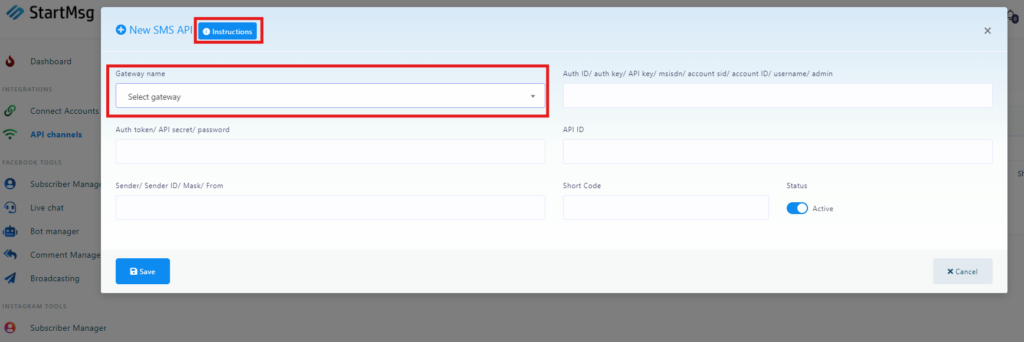
Twilio is one of the most popular SMS platforms in the world. StartMsg has integrated Twilio using their API. Easily use Twilio services through the StartMsg system for SMS sending. Click on Twilio, and you will be taken to the SMS API management section.
- Click Add New API > Add Default Gateway. A window will open where you need to select Twilio from the API list.
- To find out what you need to include for the SMS API, press the Instruction button in the SMS API adding window.
- You can test your API by pressing the test icon next to the added API in the list, to check whether the API works correctly or returns error messages.
Customizable HTTP GET API
As you know, StartMsg supports Twilio, Nexmo, Clickatell, Plivo and other SMS provider platforms by default. However, given the different global SMS sending prices, you may need to add your own local SMS provider.
It is practically impossible to add every single API. However, we have built a system that lets you add any HTTP GET request SMS API for sending. You can use your preferred SMS provider platform with StartMsg as long as it supports an HTTP GET request for sending messages. All you need to do is create a custom SMS API by following these steps:
1.
Go to API Channels > SMS API Section > HTTP GET/Post option. You will be taken to the SMS API management section. Press Add SMS API > Add Custom SMS API [GET].
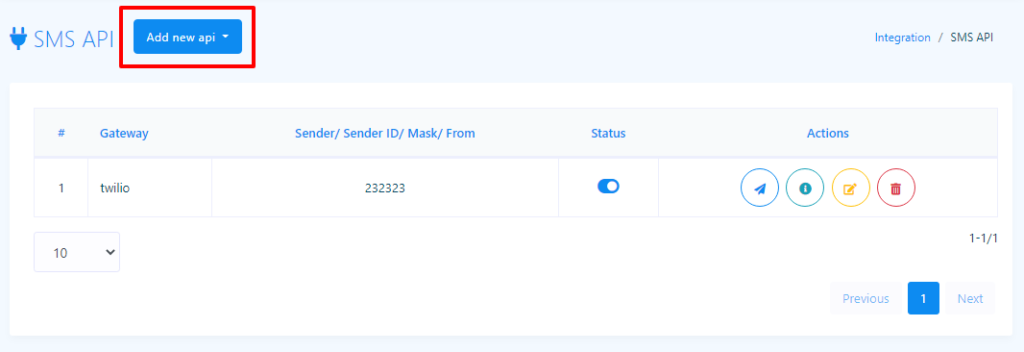
2.
Fill in the API name and HTTP/HTTPS URL fields. In the HTTP URL field, enter the URL (it must start with http or https) that works for sending a message and must be intended for an HTTP GET request.
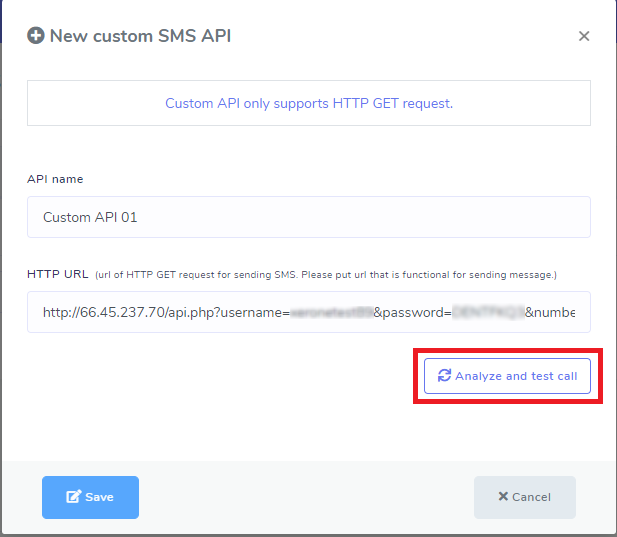
3.
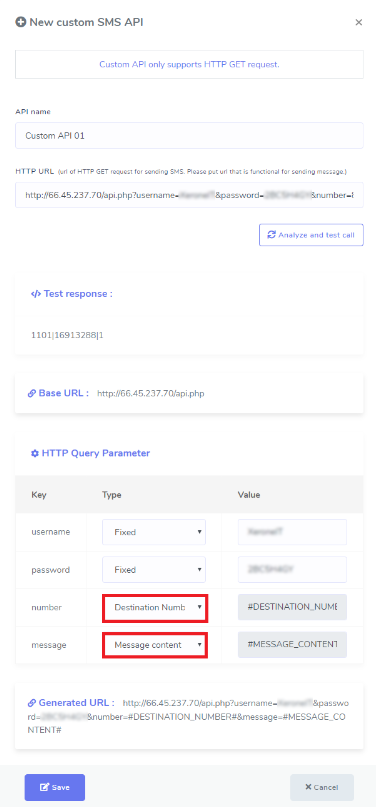
Now press the Analyze and test call button. This will call the URL you provided and show the response about sending a message through this URL. It will also display the analyzed request parameters, which may be your API key, action, sender ID and so on. Each request parameter will have a parameter type and a corresponding value. Keep the parameter types unchanged, as they are fixed for your newly created API. You can update the value according to your needs.
You will only need to change the parameter types for Destination Number and Message Content. After changing these parameter types, you will notice that the new values have been applied to your newly created API URL. When sending an SMS through this custom API, these content values will be replaced with the content you provide.
4.
Now press the Save button. That is it. You have just created a custom SMS API for sending SMS with StartMsg.
SMS HTTP POST API
1.
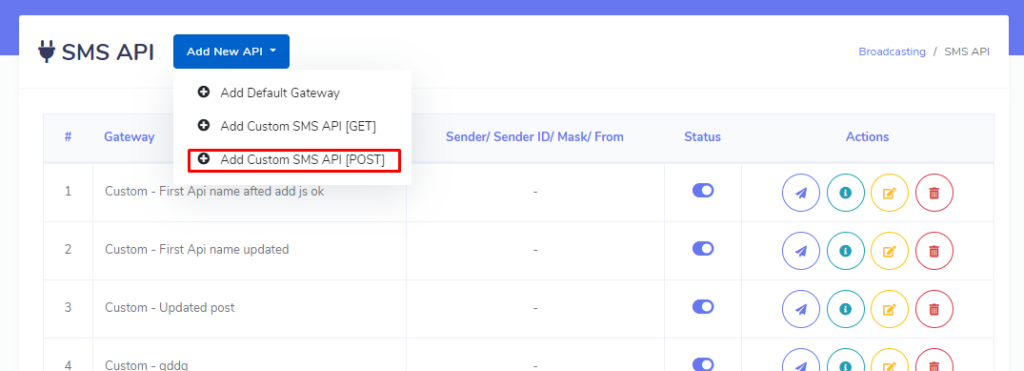
Start with API Channels, select the SMS API section and choose the HTTP GET / POST options. You will be taken to the SMS API management section. Click “Add SMS API” and select “Add Custom SMS API [POST]”.
2.
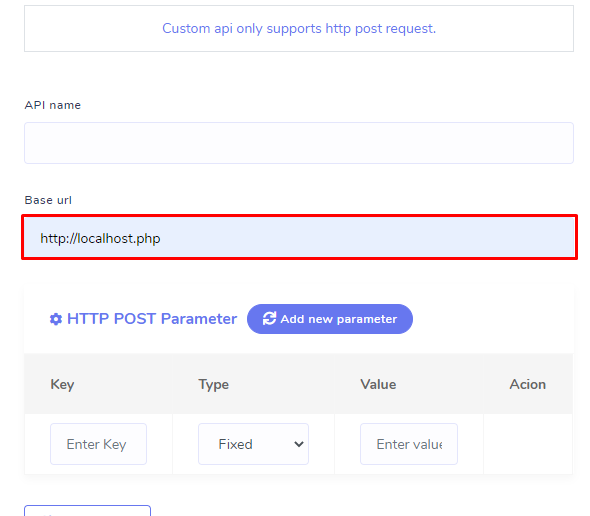
Fill in the fields for the API name and base URL. Enter the URL (it must start with http or https) that will be used to send messages and that is suitable for HTTP POST requests.
3.
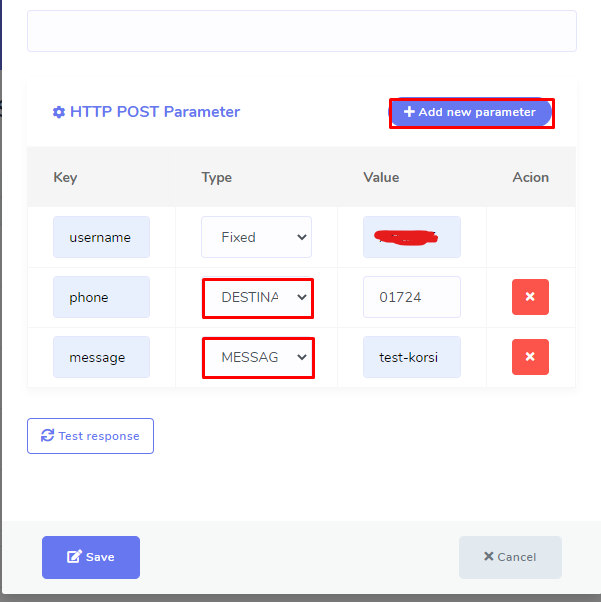
You can also add a new parameter for individual SMS messages.
4.
Press the “Test response” button. This will call the URL you just provided and show the response when you try to send a message using this URL and the specified POST parameters. Parameters must be provided with a key, type and value. Do not change the parameter type that is set for the new custom API. You can add values as needed, just change who you are sending the message to and the message content. The parameters must include both the destination number and the message content.
5.
Now press the “Save” button. That is it! You have just created a custom SMS API [POST] for StartMsg, which will let you send SMS messages.
Email API
StartMsg is constantly improving its features. Among other capabilities, it now offers email broadcasting features. StartMsg has made email broadcasting easier by integrating several popular email gateways and allowing you to add SMTP settings. Below are the email gateways that can be integrated for email broadcasting:
- SMTP
- SendGrid
- Mailgun
- Mandrill
SMTP
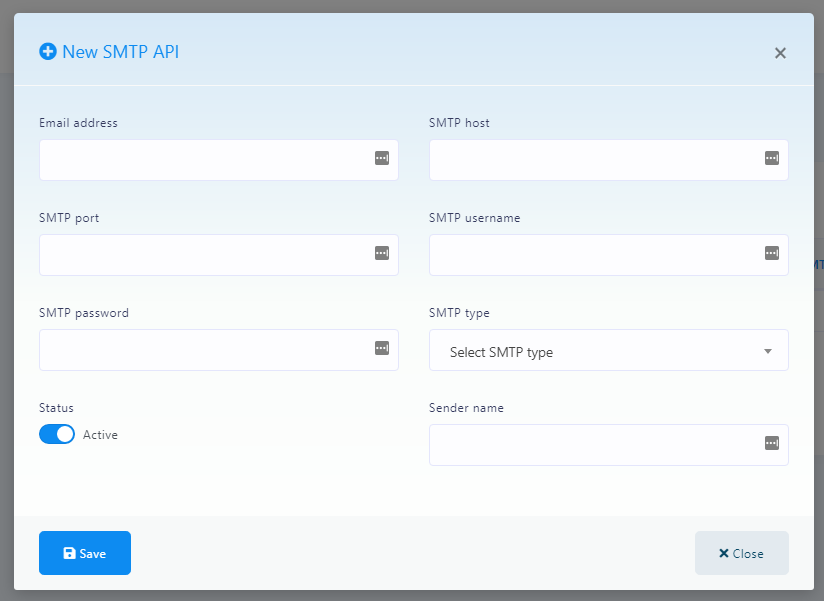
StartMsg is a powerful multi-channel marketing platform offering many useful marketing features. To broadcast emails, you can use your own configured SMTP. Click “SMTP” to be taken to the system’s SMTP section. Click “New SMTP API” to get the information needed to add a new SMTP:
- Email address
- SMTP host
- SMTP port
- SMTP username
- SMTP password
- SMTP type
- Sender name (optional)
Mailgun
Besides SMTP, you can also use the Mailgun email gateway for email broadcasting. StartMsg has integrated Mailgun using their API. Just click “Mailgun”, and you will be taken to the Mailgun management page.
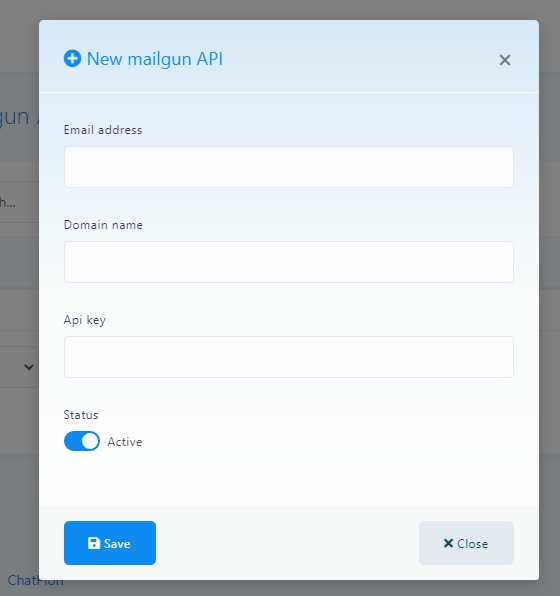
Press “New Mailgun API” to open a modal for adding a Mailgun API. Fill in the form with the required information and press the “Save” button. Do the same to add another integration.